
Getting rid of all those pesky "ums" and "ahs" in your video is one of the quickest ways to level up your content. You can either hunt them down yourself in your editing software or use an AI-powered tool to find and delete them for you. Either way, the goal is to clean up your timeline and make your delivery sound crisp and professional.
Why Bother Removing Filler Words?
Does anyone really notice those little verbal stumbles? Absolutely. Every "um," "ah," or "you know" can subtly chip away at your authority and pull your audience's focus from your main point. Think of it as the difference between a rough first draft and a final, polished article.
When viewers hear a lot of filler words, it can come across as a lack of confidence or preparation. That makes it harder for them to trust what you're saying. A clean, confident delivery, however, makes your content feel more professional and valuable, which is exactly what you need to build a loyal audience.
The Real Impact on Viewer Engagement
This isn't just about sounding good; it's about keeping people watching. When your audio is clean and easy to follow, viewers stick around longer. In fact, some studies have found that removing filler words can boost audience retention by as much as 20%. People are simply more likely to stay tuned in when a video flows smoothly. If you're curious, you can read more about how filler words affect viewer retention.
You're basically removing mental friction for your audience. They don't have to work as hard to process your information, making the whole experience more enjoyable and your message more powerful.
Two Paths to a Polished Video
Thankfully, you've got two main ways to remove filler words from video, and each has its own pros and cons. Knowing the difference will help you pick the right workflow for your needs.
Here's a quick overview of the two primary approaches for cleaning up your video's audio track.
Comparing Filler Word Removal Methods
| Method | Best For | Speed | Precision |
|---|---|---|---|
| Manual Editing | Editors who need absolute control over every single cut and transition. | Slow and tedious. | High, but depends on the editor's skill and patience. |
| AI Automation | Creators looking for speed and efficiency to produce content faster. | Incredibly fast, often taking just a few minutes. | Very high, but might require minor tweaks for perfect timing. |
Let's break down what these methods actually look like in practice.
-
Manual Editing: This is the old-school way. You stare at the audio waveform in your editing software, spot the little bumps that represent filler words, and painstakingly cut them out one by one. It gives you total control but can take hours.
-
AI Automation: Newer tools, like Tubentum, flip the script. They create a text transcript of your video, and you can delete filler words from the text itself. When you delete the word "um" from the transcript, it's instantly removed from your video timeline. It's a massive time-saver.
The goal isn't just to cut words—it's to enhance clarity. A well-edited video respects the viewer's time and keeps them focused on your message, not your hesitations.
Ultimately, whether you prefer the hands-on precision of manual editing or the lightning speed of AI, the end result is a more professional, authoritative, and engaging video that keeps your audience hooked.
The Old-School Way: Cutting Filler Words by Hand
Before AI editing tools came along and started doing this with one click, taking out filler words was a painstaking, manual job. It’s a process that takes time and a sharp eye, but it gives you total control over the final product. Honestly, learning how to do it by hand will give you a much better feel for pacing and rhythm, which is a valuable skill even if you end up using automated software most of the time.
It all starts with simply watching and listening to your footage. Over time, you'll get a feel for not just what your "ums" and "ahs" sound like, but what they actually look like in your editing timeline.
Spotting Fillers on the Waveform
Every video editor shows your audio as a waveform—that visual map of your sound. This is your best friend for manual edits. Filler words like "um," "ah," or "you know" tend to have a pretty recognizable look.
-
Look for the little bumps: An "um" or an "ah" often shows up as a small, isolated blip on the waveform, disconnected from the bigger, beefier shapes of your actual sentences.
-
They're usually quiet: Since we often mumble these fillers, they'll look shorter (have a lower amplitude) than the rest of the dialogue.
-
And they're quick: Fillers are just brief hesitations, so they’ll look very narrow on the timeline.
When you think you've spotted one, zoom way in. Play just that little snippet to make sure it's actually a filler word and not a quick breath or the start of a word you meant to say.
Pro Tip: The real trick to getting fast at this is trusting your eyes. Once you learn what your personal filler words look like, you can visually scan the timeline and find them way faster than listening to the whole thing over and over.
How to Make a Clean Cut
Found one? Great. Now you have to remove it without leaving a trace. This takes a bit of precision to avoid a weird, jarring jump in the audio or video.
The standard move is to grab the blade tool (it usually looks like a razor) and make a cut right before the filler word and another one right after it. Then, you just select that tiny little piece you've isolated and hit delete. Most editors have a ripple delete function that will automatically slide everything after the cut over, closing the gap for you.
But just slicing it out can sometimes sound… choppy. That’s when you need a couple of classic editing tricks to make it seamless.
Smoothing Things Over with J-Cuts and L-Cuts
Just deleting a word can create an abrupt jump that screams "I was edited!" To fix this, editors rely on J-cuts and L-cuts. These are simple but powerful techniques that make edits feel invisible by letting the audio and video change at slightly different moments.
-
An L-cut is when the audio from the clip you're leaving continues over the start of the next clip.
-
A J-cut is the reverse—the audio from the upcoming clip starts a little before the video actually cuts to it.
So, if you just snipped out an "um," you could use a subtle L-cut. You’d let the sound from the end of the previous word hang in the air for a split second over the new visual. This tiny bit of audio overlap completely masks the edit, keeping the rhythm of your speech feeling natural and unbroken.
Using AI to Automate Filler Word Removal
Let's be real—manually hunting down every single "um" and "ah" is a soul-crushing task. It works, but it's a massive time sink that can turn a simple edit into a multi-hour ordeal. This is where modern editing tools completely change the game. AI has made it possible to remove filler words from video in minutes, not hours, by changing the entire editing workflow.
Instead of scrubbing through a timeline staring at audio waveforms, imagine editing your video just by proofreading a document. That’s the simple but brilliant idea behind transcript-based editing, a feature that's quickly becoming the new standard.
The Magic of Transcript-Based Editing
Tools like Descript, Riverside, and our own platform, Tubentum, start by generating an automatic transcript of your video. Your entire recording is laid out as text, which is a much more intuitive way to find your way around your footage.
From there, the AI gets to work, scanning the transcript and audio to pinpoint common filler words—think "like," "you know," "uh"—and even those long, awkward silences.
But the real power is what happens next. The tool highlights every filler word it finds right in the text. You can review them and, with a single click, delete every instance from your video. When you delete a word from the transcript, the corresponding video and audio clip is instantly cut from your timeline. It’s that simple.
This diagram shows the old-school manual workflow, which really highlights just how much work AI now handles for you.
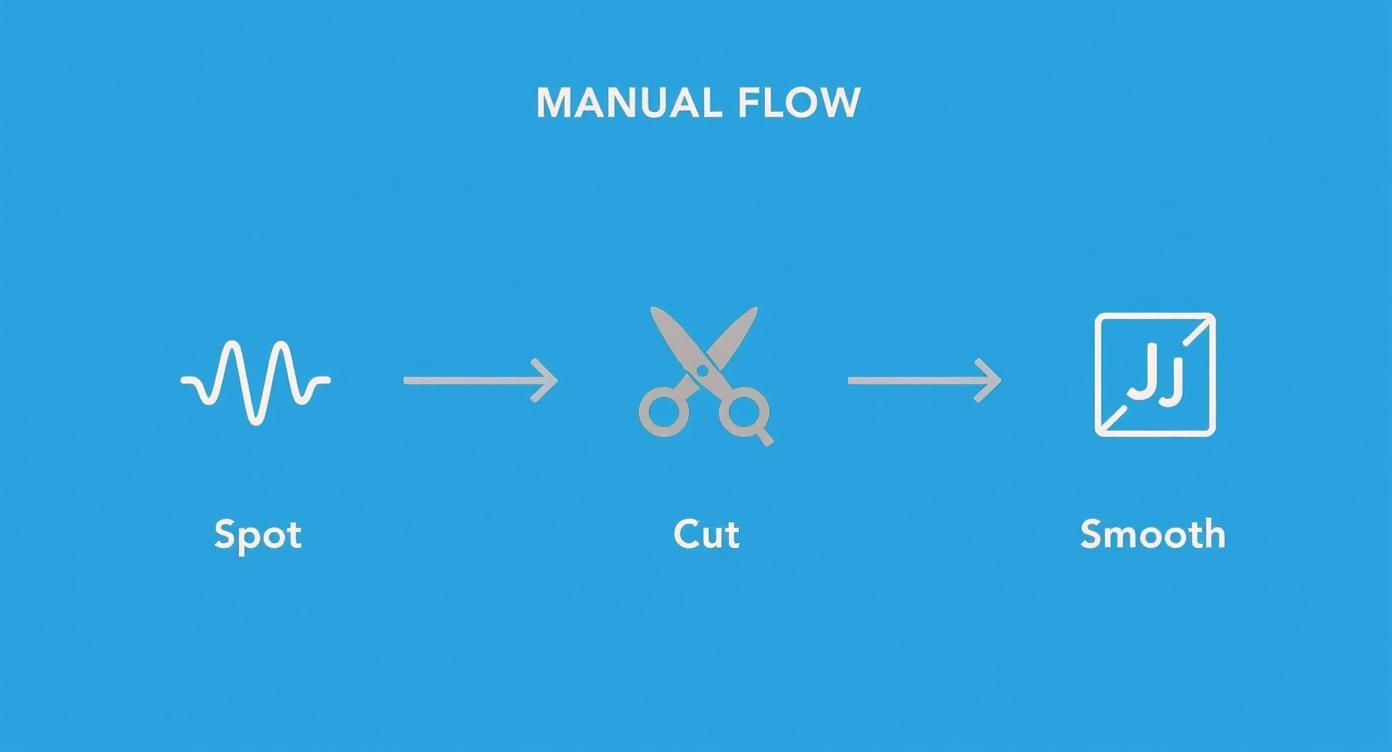
You can see how much time and mental energy you save by skipping the manual spotting, cutting, and smoothing for every single verbal tic.
How AI Actually Detects Filler Words
This isn't just a simple word search. The AI is smart enough to analyze audio patterns, pitch, and cadence to tell the difference between you stumbling over a word and you speaking intentionally.
It understands context. For instance, a good tool can usually distinguish the filler word "like" from its proper use in a sentence, such as, "I really like that idea." This is critical because the last thing you want is the AI accidentally chopping out important parts of your message.
This automation is now a core part of the modern video editing toolkit. A big reason for this shift is that features like one-click filler word removal let anyone clean up their recordings without having to be a pro editor. As detailed in this breakdown of the top software for smart video production, removing these verbal stumbles instantly makes the speaker sound more credible and polished.
Key Takeaway: AI-driven, transcript-based editing doesn't just save time—it makes professional-level polishing accessible to creators who don't have a traditional video editing background.
By letting an algorithm handle this tedious task, you can stop obsessing over tiny mistakes and focus your energy on what really matters: storytelling and creating great content.
Popular AI Filler Word Removal Tools
The market for AI video editors has exploded, and several excellent platforms offer this one-click cleanup feature. While they share a common goal, they are each built for slightly different types of creators.
| Tool Name | Key Feature | Pricing Model | Target User |
|---|---|---|---|
| Tubentum | All-in-one platform for YouTubers; combines editing with channel management. | Subscription-based | YouTube creators and content marketers |
| Descript | Strong focus on podcasting and audio editing; excellent transcription accuracy. | Subscription-based | Podcasters, educators, and corporate teams |
| Riverside | High-quality remote recording studio with built-in transcript-based editing. | Subscription-based | Interviewers, podcasters, and webinar hosts |
| Veed.io | Browser-based editor with a suite of tools for social media content. | Freemium/Subscription | Social media managers and short-form video creators |
Each of these tools offers a powerful way to tackle filler words automatically. The best choice for you really comes down to your primary content format—whether it's long-form YouTube videos, podcasts, or short social clips—and the other features you need in your workflow.
Making Your Edits Invisible for a Natural Flow
So you've zapped all the "ums" and "ahs." Great! But now your video is full of jarring jumps and awkward pauses. It’s a classic rookie mistake. Simply deleting filler words can make your edits painfully obvious, pulling your audience out of the moment.
The real magic is making those cuts disappear. You want your final video to feel like you nailed it in a single, flawless take. This is what separates the pros from the amateurs, and it’s all about making your edits completely invisible. A few trusted techniques can get you there.
Smooth Out Audio with Crossfades
Your first tool for fixing choppy audio is the crossfade. Every time you cut out a word, you're essentially slamming two different audio clips together. This often creates an audible "pop" or an unnatural change in the background sound.
A crossfade is the perfect solution. It works by slightly overlapping the two audio clips—fading out the end of the first one while fading in the start of the second. This tiny transition, usually just a few frames long, is more than enough to fool the human ear into hearing one seamless piece of audio. Most video editors have a default crossfade you can apply with a simple right-click.
Hide Jump Cuts with B-Roll
Crossfades take care of the audio, but you still have to deal with the visual evidence: the jump cut. If you're suddenly in a slightly different position on screen, it's a dead giveaway. The best way to cover your tracks is with B-roll.
B-roll is just supplemental footage you can cut to while your primary audio continues. It's a fantastic way to keep things visually interesting while masking your edits.
Good B-roll options include:
-
Screen recordings if you're doing a software tutorial.
-
Relevant images or graphics to drive home a specific point.
-
Stock video clips that visually relate to what you're talking about.
Just place a B-roll clip over the jump cut. Your voiceover continues uninterrupted underneath, but the viewer sees a new image. When you cut back to your face, the jarring jump is gone.
Pro Tip: Don't just slap B-roll directly over the cut. Start it a second or two before the edit and let it play for a few seconds after. This makes the transition feel more deliberate and polished, not like you're just trying to hide something.
Fill the Gaps with Room Tone
For a truly professional finish, you need to use room tone. This is the unique, ambient sound of the space where you record. No room is ever truly silent; there’s always the hum of a computer, the whisper of an air vent, or just the natural echo of the space.
Before or after your main recording, let the camera roll for 30-60 seconds to capture nothing but this "silence." This recording is your room tone. When you snip out filler words and create tiny audio gaps, you can patch them with a small piece of this track. This keeps the background noise perfectly consistent, making your edits undetectable.
How to Reduce Filler Words While Recording

The quickest way to remove filler words from video is to stop saying them in the first place. Post-production magic is great, but building better habits on camera saves a ton of editing time and, frankly, makes you a much better speaker. It all starts with aiming for clarity, not perfection.
A lot of creators think a word-for-word script is the answer, but it often backfires. You can sound robotic, and the moment you lose your place, you start stumbling. I've found it's much better to work from a simple bulleted outline. This gives you the structure to stay on track but the freedom to let your natural personality come through.
Embrace the Power of the Pause
Here’s a trick that feels weird at first but works wonders: when you feel an "um" or an "ah" bubbling up, just stop. Take a breath. It might feel like an eternity to you, but to your audience, it just looks like you're thinking. A deliberate pause makes you seem confident and adds a nice bit of weight to whatever you say next.
Honestly, your viewers would much rather have a second of silence than a string of "uhs" and "likes." Get comfortable with taking a slow, deep breath when you need a moment. It does more than just kill a filler word; it actually calms you down and helps you deliver your next line much more smoothly.
Fine-Tune Your Recording Habits
A few small tweaks to your routine before you hit record can make a surprisingly big difference in how fluently you speak. These are just simple habits that set the stage for a great take.
-
Stay Hydrated: A dry mouth leads to all sorts of weird clicks and stumbles. I always keep a glass of water on my desk and take a few sips before I start.
-
Do a Practice Run: Just talk through your main points once, off-camera. It’s a low-pressure way to smooth out clunky phrases and get your confidence up.
-
Know Your Opener: If you only memorize one thing, make it your first sentence or two. Nailing the intro sets a positive, confident tone for the rest of the video.
Adopting these habits is a proactive approach to cleaner audio. You're not just fixing mistakes later; you're building the skills of an effective communicator.
This focus on delivery works hand-in-hand with today's editing technology. As more creators aim for that polished look, AI tools are becoming essential. Projections show that by 2030, 72% of small businesses will use AI video tools, potentially cutting their marketing budgets by up to 43%. If you want to learn more about the global trends in AI video editing, it's worth a read. By speaking more clearly from the start, you give these powerful tools much cleaner footage to work with, which always leads to a better final product.
Got Questions About Cutting Filler Words? Let's Clear Things Up.
Even with the best tools, you're bound to have questions when you start cleaning up your video's audio. It's totally normal. Think of this process as more of an art than a strict science—the real goal isn't just to chop out words, but to make your message clearer without sounding like a robot.
Here are some of the most common questions I hear from creators. Getting these answers straight will help you edit with a lot more confidence.
Do I Really Need to Delete Every Single "Um"?
This is the big one, and the short answer is a hard no. It's tempting to hunt down and destroy every last "um" and "ah," but going too far can actually make your speech sound sterile and unnatural. A few subtle hesitations are part of what makes us sound human.
Think about it—a perfectly polished, flawless delivery can feel scripted and keep you from connecting with your audience. You have to be selective.
-
Cut what breaks the flow. If a long "uhhhhh" creates an awkward silence, it’s got to go.
-
Keep what feels conversational. Sometimes a quick "you know" is just part of your natural rhythm. Trust your gut (and your ears).
My rule of thumb: If the filler word distracts from what you're saying, cut it. If it doesn't, and it helps you sound more like yourself, consider leaving it in. The viewer's focus should be on your message, not the edit.
How Well Do AI Tools Understand Different Accents?
This is a really important question, especially if you don't have a standard American or British accent. The good news is that transcription AI has come a long way. It's gotten incredibly good at understanding a huge variety of dialects and speaking styles.
The best platforms, like the one built into Tubentum, train their AI on massive, diverse datasets of audio from all over the world. This means they're usually spot-on when transcribing speech and flagging filler words, no matter how you talk. While no AI is 100% perfect, the accuracy is almost always high enough to make your editing workflow a breeze.
What if the AI Edit Makes My Video Sound Robotic?
You've hit the button, the filler words are gone, but now you sound… choppy. It happens. Sometimes an automated edit can make cuts that are just a little too tight, messing with your natural cadence. If your video sounds weird after the one-click magic, it's time for a little manual finessing.
First, just listen through the timeline. When you hear a cut that sounds jarring or unnatural, zoom way in on that spot in your editor. Often, the fix is as simple as nudging the edit point a few frames to leave in a natural breath or a tiny, conversational pause.
This is also where audio crossfades become your best friend. By applying a very short crossfade over the cut, you can blend the two audio clips together seamlessly. It’s a tiny adjustment that makes the edit completely invisible to your audience and preserves that smooth, natural flow.
Ready to stop wasting hours hunting for every "um" and "ah"? Tubentum automates this entire process, transforming your raw footage into a clean, professional video in just one click. Give it a try and see just how simple great editing can be. Get started with Tubentum today.
Article created using Outrank